> ## Documentation Index
> Fetch the complete documentation index at: https://documentation.uponai.com/llms.txt
> Use this file to discover all available pages before exploring further.
# Book Calendar
> Let your agent book appointments directly through Cal.com during a call.
## Overview
The Book Calendar tool connects your agent to Cal.com so it can confirm and book appointments in real time after the caller selects a time slot.
***
## Setup
Sign up at [cal.com](https://cal.com) if you don't have one.
In your Cal.com dashboard, set up the event type you want bookings created under.
| Credential | Where to find it |
| ------------- | --------------------------------------- |
| Event Type ID | The numeric ID in your event type's URL |
| API Key | Settings → Developer → API Keys |
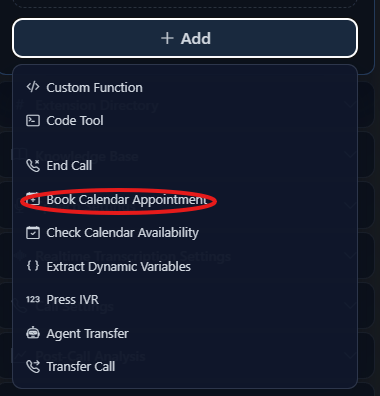
In your agent's Functions section, click **+ Add** and select **Book Calendar Appointment**.
 Enter:
* Tool name
* Cal.com API Key
* Event Type ID
* Tool description
* Timezone (optional)
Tell the agent when to book:
```txt theme={null}
When the user selects a slot, book the appointment by calling the book_appointment function.
```
Pair this with the **Check Calendar Availability** tool so your agent first checks open slots before confirming a booking.
Enter:
* Tool name
* Cal.com API Key
* Event Type ID
* Tool description
* Timezone (optional)
Tell the agent when to book:
```txt theme={null}
When the user selects a slot, book the appointment by calling the book_appointment function.
```
Pair this with the **Check Calendar Availability** tool so your agent first checks open slots before confirming a booking.