> ## Documentation Index
> Fetch the complete documentation index at: https://documentation.uponai.com/llms.txt
> Use this file to discover all available pages before exploring further.
# Extract Dynamic Variables
> Capture and store information from the conversation as dynamic variables for use later in the call.
## Overview
The Extract Dynamic Variables tool lets your agent capture specific pieces of information a caller provides — like their name, phone number, or appointment preference — and store them as variables that can be referenced throughout the rest of the call.
***
## Setup
In your agent's Functions section, select **Extract Dynamic Variable** from the dropdown.
For each variable you want to capture, provide:
| Field | Description |
| -------------- | --------------------------------------------------------------- |
| Reference name | The variable name used to reference it later (e.g. `user_name`) |
| Description | What this value represents |
| Data type | One of: Text, Number, Enum, Boolean |
| Enum options | Required if type is Enum (e.g. `"Yes"`, `"No"`, `"Maybe"`) |
Tell the agent when to extract the information:
```txt theme={null}
When the user states their name and phone number, extract the information by calling the extract_user_details function.
```
***
## Supported Data Types
| Type | Example values |
| ------- | ---------------------------- |
| Text | `"John Smith"`, `"headache"` |
| Number | `42`, `98.6` |
| Enum | `"Yes"`, `"No"`, `"Maybe"` |
| Boolean | `true`, `false` |
***
## Using Extracted Variables
Once captured, reference variables anywhere in your conversation using `{{variable_name}}` syntax — in prompts, function parameters, SMS messages, and more.
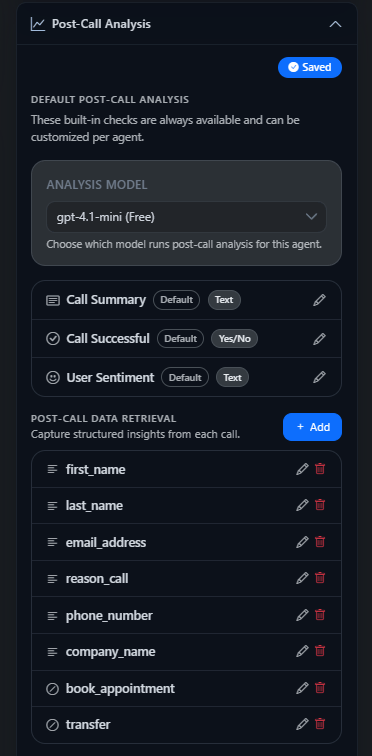
Variables captured during the call also appear in the **Post-Call Analysis** panel, where you can review extracted data field by field.