> ## Documentation Index
> Fetch the complete documentation index at: https://documentation.uponai.com/llms.txt
> Use this file to discover all available pages before exploring further.
# Knowledge Base
> Enhance your AI agent with a knowledge base using URLs, documents, and custom text for better responses.
A knowledge base is a collection of information sources your agent can search during a call to retrieve relevant context. It improves response quality — especially when there is too much information to fit in a prompt — and is ideal for support, helpdesk, and FAQ use cases.
**Supported sources:**
* Website content (via URLs)
* Documents: `.bmp`, `.csv`, `.doc`, `.docx`, `.eml`, `.epub`, `.heic`, `.html`, `.jpeg`, `.png`, `.md`, `.msg`, `.odt`, `.org`, `.p7s`, `.pdf`, `.ppt`, `.pptx`, `.rst`, `.rtf`, `.tiff`, `.txt`, `.tsv`, `.xls`, `.xlsx`, `.xml`
* Custom text snippets
## How It Works
Create a knowledge base and link it to your agent. When linked, the agent automatically searches the knowledge base before every response — no prompt changes needed.
**At creation time:** sources are chunked, embedded, and stored in a vector database.
**During a call:** before responding, the agent uses the conversation transcript to find the most relevant chunks and feeds them to the LLM as context under `## Related Knowledge Base Contexts`.
## Auto-Refreshing and Auto-Crawling
For URL sources, you can enable:
* **Auto-refreshing** — re-fetches all URLs every 24 hours to keep content current
* **Auto-crawling** — crawls all pages under specified URL paths every 24 hours, excluding any URLs on the exclusion list
## Limits
| Source type | Limit |
| ---------------------------- | ------------------------------------ |
| URLs | 500 per knowledge base |
| Auto-crawling exclusion URLs | 200 per path; 500 per knowledge base |
| Text snippets | 50 per knowledge base |
| Files | 25 files, max 50 MB each |
| CSV/TSV/XLS/XLSX | 1,000 rows, 50 columns |
Create multiple knowledge bases to overcome these limits. An agent can have more than one knowledge base linked to it.
## Best Practices
* Prefer `.md` (Markdown) files over `.txt` — structured Markdown is chunked and retrieved more accurately
* Use clear, descriptive headings; split long sections into `##`/`###` subsections
* Write short paragraphs and lists; avoid walls of text
* Avoid ambiguous pronouns like "it" or "this" — prior chunks won't be present, so references must be self-contained
* Use specific URL paths for auto-crawling instead of broad paths with many exclusions
* Put supporting information in the knowledge base; put agent instructions in the prompt
## Setup
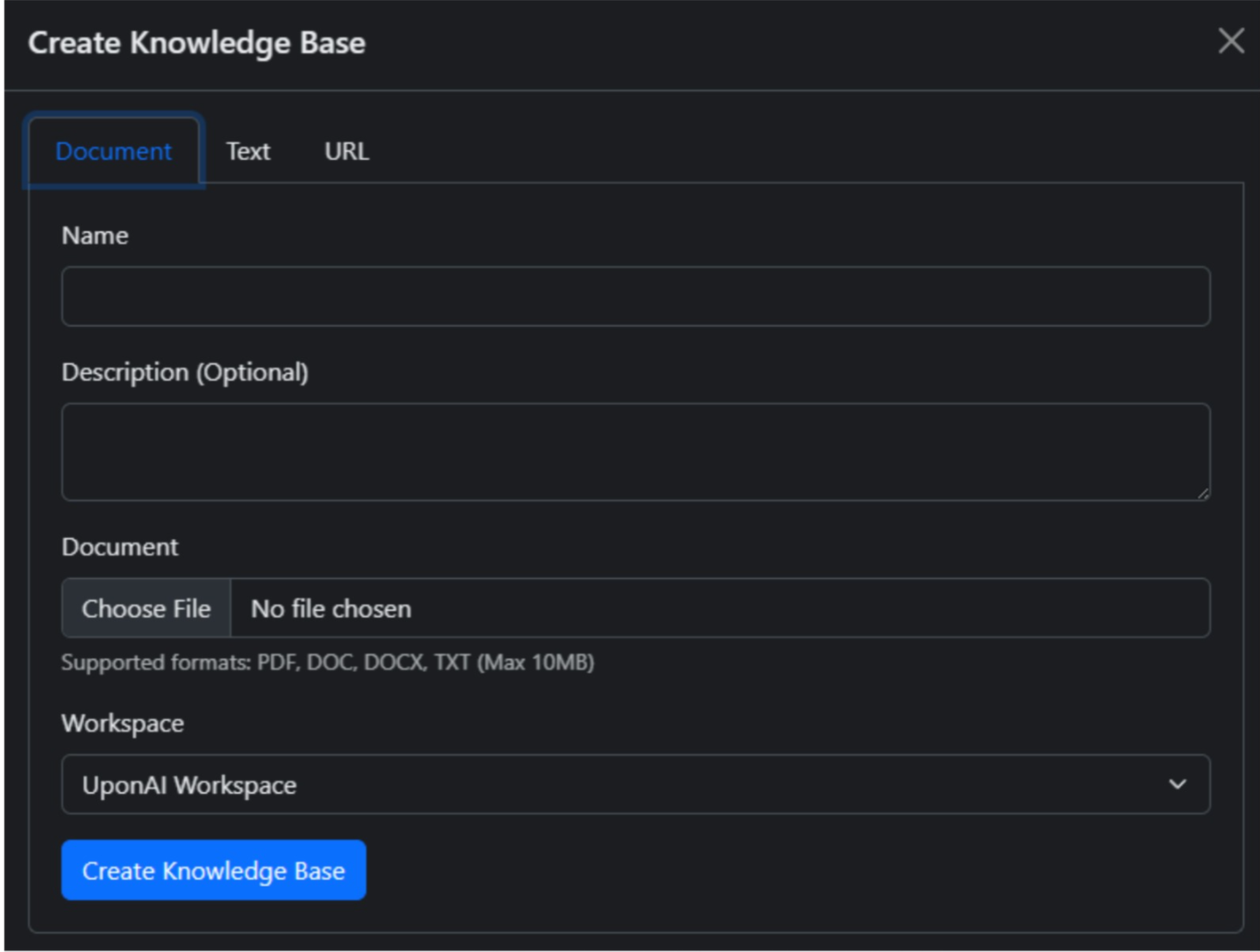
In the top navigation bar under **Agents**, navigate to **Knowledge Bases** and click **Create Knowledge Base**.
 Choose a source type:
* **URL** — import from web pages; supports single pages or full sites
* **File** — upload documents (PDF, TXT, DOCX, etc.), max 50 MB
* **Text** — paste or type custom content directly
Choose a source type:
* **URL** — import from web pages; supports single pages or full sites
* **File** — upload documents (PDF, TXT, DOCX, etc.), max 50 MB
* **Text** — paste or type custom content directly
 Enable auto-crawling for specific URL paths. URLs not selected will be added to the exclusion list.
Once created (may take a few minutes), go into your agent, navigate to **Knowledge Base** on the right, click **Add Knowledge Base**, select your knowledge base, then click **Save**.
Adjust **KB Retrieval Chunks and Similarity**:
* **Chunks to retrieve** — max chunks returned per response (range 1–10, default: 3)
* **Similarity threshold** — how strictly chunks must match the context (default: 0.60)
Default settings (3 chunks, 0.60 threshold) work well for most cases. Increasing chunks gives more context but raises prompt length and can reduce generation quality.
For Conversation Flow agents, attach a knowledge base to individual Conversation Nodes or Subagent Nodes for more focused context on specific topics.
## FAQ
**Do I need to change my prompt to use a knowledge base?**
No. The knowledge base retrieves automatically on every response.
**How can I prevent the LLM from generating information not in the knowledge base?**
Add instructions like "Only answer based on the information provided. If you don't know, say so." to your prompt.
**Will this add latency to calls?**
Retrieval adds a small amount of latency — typically under 200ms.
**Is there a way to check what's being retrieved?**
Yes — the dashboard call logs show which chunks were retrieved for each response.
## Pricing
| Item | Cost |
| --------------------------------- | ---------------- |
| First 10 knowledge bases | Free |
| Additional knowledge bases | \$8 / month each |
| Calls with knowledge base enabled | \$0.005 / minute |
The per-minute charge is the same regardless of how many knowledge bases are linked to the agent.
***
## Post Call Analysis
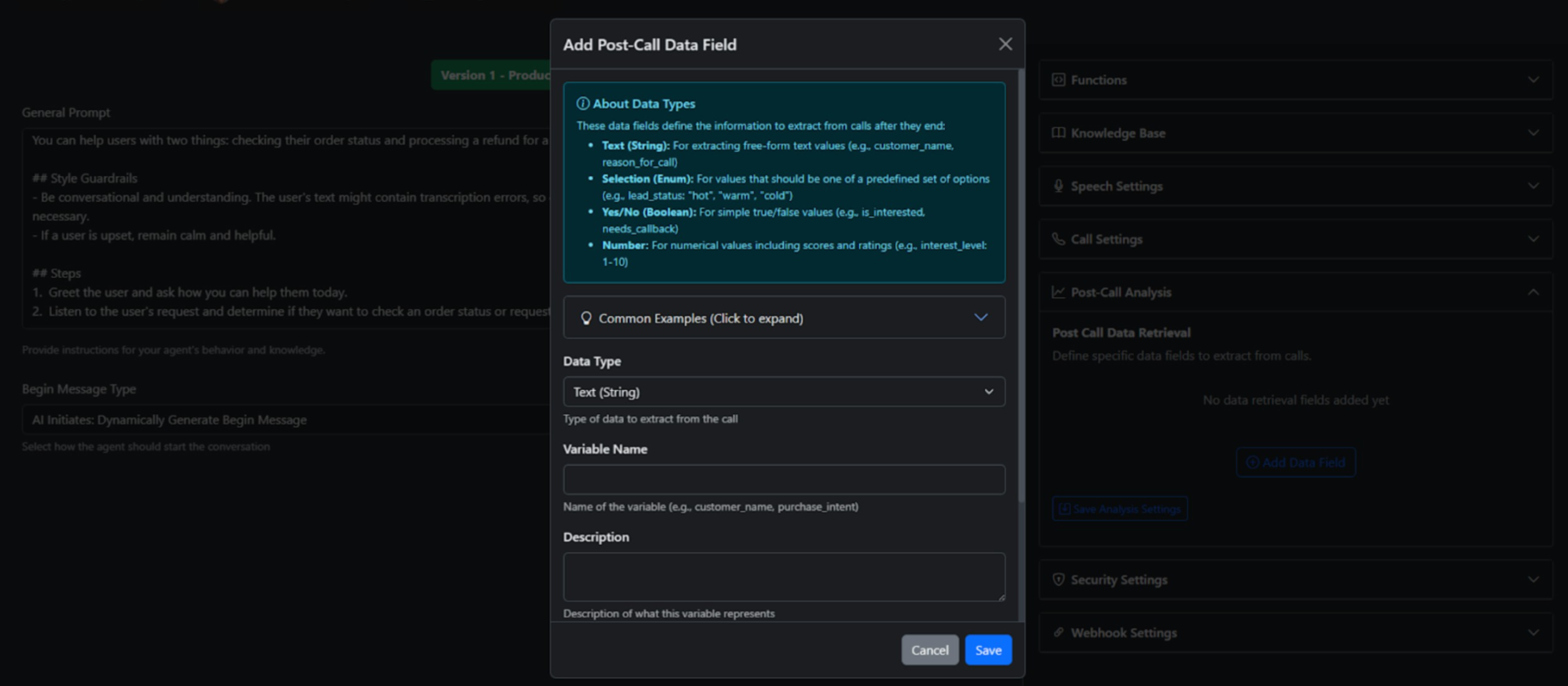
Post-call analysis automatically analyzes conversations after they end, helping you derive insights from your calls. Several built-in analysis categories are available under **Common Examples** in your agent settings.
### Adding Post-Call Analysis Data Fields
* Under **Post-Call Analysis**, click **Add Data Field**
* Add data types you want the agent to retrieve
* This data appears in your CDR, emails, and SMS (if opted in via webhook)
Enable auto-crawling for specific URL paths. URLs not selected will be added to the exclusion list.
Once created (may take a few minutes), go into your agent, navigate to **Knowledge Base** on the right, click **Add Knowledge Base**, select your knowledge base, then click **Save**.
Adjust **KB Retrieval Chunks and Similarity**:
* **Chunks to retrieve** — max chunks returned per response (range 1–10, default: 3)
* **Similarity threshold** — how strictly chunks must match the context (default: 0.60)
Default settings (3 chunks, 0.60 threshold) work well for most cases. Increasing chunks gives more context but raises prompt length and can reduce generation quality.
For Conversation Flow agents, attach a knowledge base to individual Conversation Nodes or Subagent Nodes for more focused context on specific topics.
## FAQ
**Do I need to change my prompt to use a knowledge base?**
No. The knowledge base retrieves automatically on every response.
**How can I prevent the LLM from generating information not in the knowledge base?**
Add instructions like "Only answer based on the information provided. If you don't know, say so." to your prompt.
**Will this add latency to calls?**
Retrieval adds a small amount of latency — typically under 200ms.
**Is there a way to check what's being retrieved?**
Yes — the dashboard call logs show which chunks were retrieved for each response.
## Pricing
| Item | Cost |
| --------------------------------- | ---------------- |
| First 10 knowledge bases | Free |
| Additional knowledge bases | \$8 / month each |
| Calls with knowledge base enabled | \$0.005 / minute |
The per-minute charge is the same regardless of how many knowledge bases are linked to the agent.
***
## Post Call Analysis
Post-call analysis automatically analyzes conversations after they end, helping you derive insights from your calls. Several built-in analysis categories are available under **Common Examples** in your agent settings.
### Adding Post-Call Analysis Data Fields
* Under **Post-Call Analysis**, click **Add Data Field**
* Add data types you want the agent to retrieve
* This data appears in your CDR, emails, and SMS (if opted in via webhook)