> ## Documentation Index
> Fetch the complete documentation index at: https://documentation.uponai.com/llms.txt
> Use this file to discover all available pages before exploring further.
# Build Your First Phone Agent in 5 Minutes
> Step-by-step guide to create, test, and deploy your first AI phone agent with UponAI.
This quickstart walks you through:
* Creating your first agent from a template
* Testing it in the web interface
* Deploying it to a real phone number
* Making your first AI-powered phone call
Visit [app.uponai.com](https://app.uponai.com) and sign up for a new account.
* Navigate to the **Agents** tab
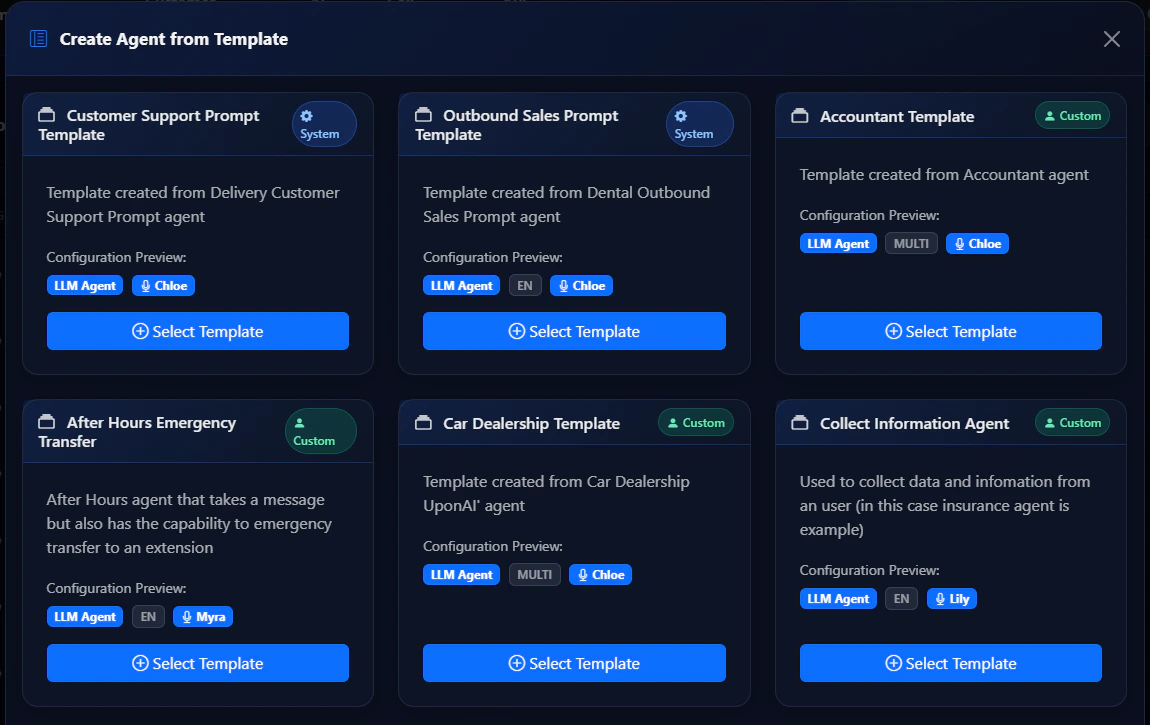
* Click **Create from Template**
* Browse and select a template
* Give your agent a name
* Click **Create Agent**
 Click the **Test** button to interact with your agent in the web interface before going live.
Before buying a phone number, add a payment method to your account.
Go to the **Billing** tab and click **Change payment methods**.
* Go to the **Phone Numbers** tab
* Click **Buy New Number**
* Optionally enter an area code
* Purchase your number
* Assign your agent to the number in the configuration settings
**Incoming calls:** dial your purchased number.
**Outbound calls:** click **Make an outbound call** and enter the destination number with country code (e.g., `+12137774445`).
Your agent is now live and can receive incoming calls, make outbound calls, handle natural conversations, and process requests 24/7.
## Next Steps
Learn prompt engineering to improve your agent's responses.
Integrate APIs and external services into your agent.
Integrate UponAI into your application with Node.js or Python.
Manage agents directly from AI coding tools like Cursor or Claude.
Click the **Test** button to interact with your agent in the web interface before going live.
Before buying a phone number, add a payment method to your account.
Go to the **Billing** tab and click **Change payment methods**.
* Go to the **Phone Numbers** tab
* Click **Buy New Number**
* Optionally enter an area code
* Purchase your number
* Assign your agent to the number in the configuration settings
**Incoming calls:** dial your purchased number.
**Outbound calls:** click **Make an outbound call** and enter the destination number with country code (e.g., `+12137774445`).
Your agent is now live and can receive incoming calls, make outbound calls, handle natural conversations, and process requests 24/7.
## Next Steps
Learn prompt engineering to improve your agent's responses.
Integrate APIs and external services into your agent.
Integrate UponAI into your application with Node.js or Python.
Manage agents directly from AI coding tools like Cursor or Claude.