
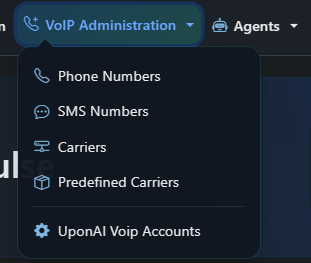
SMS capabilities are currently limited to US numbers only. Telnyx is not supported yet. For other custom telephony providers, check your provider’s documentation on enabling SMS.
Enable SMS Capabilities
Choose one of three options depending on your setup:- Option 1: UponAI Twilio Numbers
- Option 2: Bring Your Own Twilio Number
- Option 3: SMS-Approved UponAI Number (No A2P)
Enabling SMS for UponAI Twilio numbers requires A2P (Application-to-Person) registration — a mandatory regulatory process for business SMS in the US.One-time fees:
- Business profile approval: Free
- Low-volume brand ($4) — fewer than 6,000 message segments/day to US (2,000 to T-Mobile)
- Standard brand ($45) — up to 400,000 message segments/day
- SMS campaign: $15
1
Get approved for a business profile
Create or reuse an existing business profile and follow the Business Profile approval steps.
2
Select a brand type and get approved
Only one brand can be created per business profile — this cannot be changed later. Choose Low-volume or Standard based on your expected SMS volume.
3
Get approved for an SMS campaign
Fill out your intended use case and sample messages. SMS traffic must match your campaign — mismatches can result in your number being suspended. Be accurate about your actual use case.If you need to send different types of messages later, you can create a new campaign.
Send SMS During a Call
Configure your agent to send SMS messages during an active phone call:- Conversation Flow agents — Use the SMS Node
- Single/Multi Prompt agents — Use the Send SMS function
Receive SMS During a Call
Agents can receive and understand SMS (including MMS) during an active phone call — even if the agent hasn’t sent any SMS first. This lets users send supplementary information mid-conversation, such as a photo, screenshot, or reference number.- UponAI Twilio numbers — Works out of the box, no additional setup needed
- Custom telephony numbers — Supported after A2P approval
Purchase an SMS Number
To purchase a dedicated SMS number, click + Purchase SMS Number, select a workspace and agent, enter a 3-digit US area code, and search for available numbers.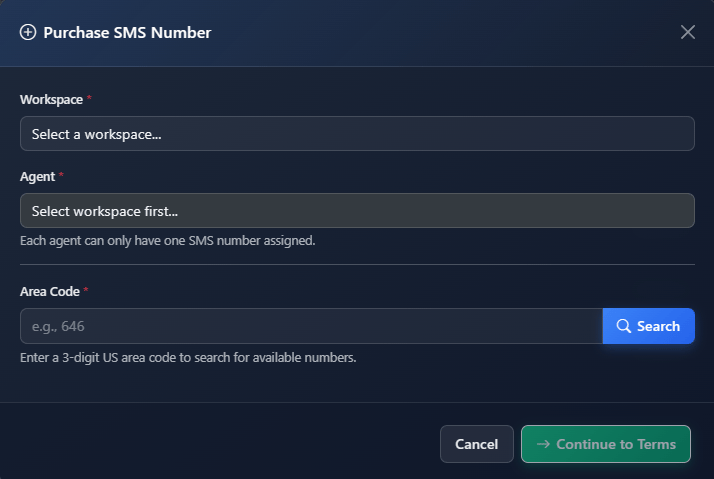
Set Up Two-Way SMS Conversations
Once SMS is enabled for your number, attach a chat agent to the number. The number will then receive inbound SMS and reply automatically.- Inbound SMS — Works immediately once a chat agent is attached. Use the Inbound Webhook to filter and add context to incoming messages.
- Outbound SMS — Click Make an outbound SMS in the dashboard, or use the Create Outbound SMS API to send programmatically.